
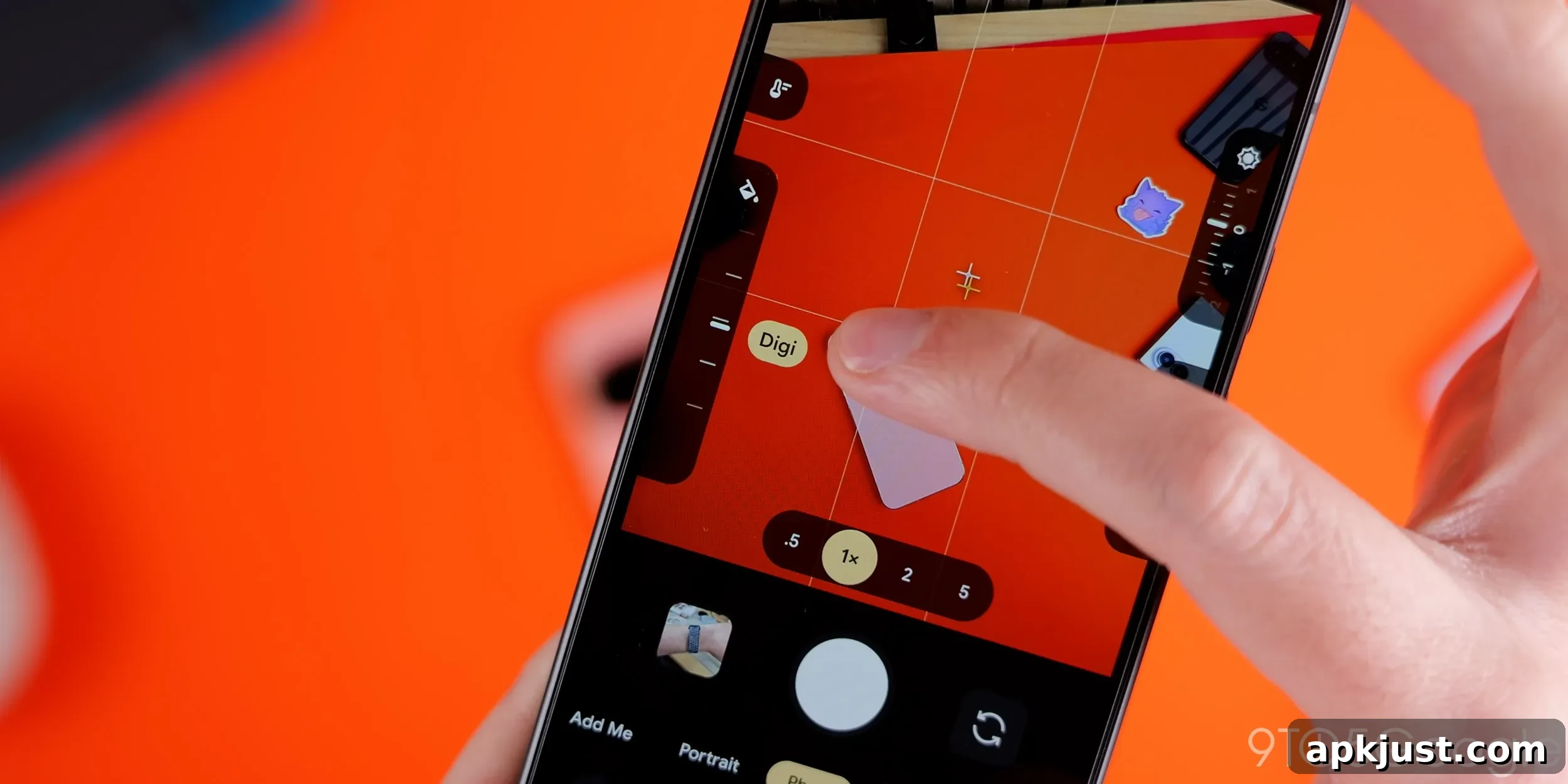
The Pixel 11 series is now in the hands of many users, and for the most part I count myself among the satisfied. This generation brings a major change to the camera experience: Google has relaxed its HDR-driven processing approach and introduced Camera Looks, which gives the Pixel a wider range of finished image styles. That flexibility is welcome, though early impressions highlighted a limitation: some non-standard Looks didn’t seem to stick as the camera’s default. Fortunately, there’s a simple setting that fixes that behavior.
Contrary to my initial experience, you are not restricted to the four standard defaults as your permanent choice. While Original, Natural, Shadows, and Vanilla appear by default in the visible “Default Look” selection, Pixel 11 users can also save any of the more distinctive Looks — Velvet, Classic, Digi, and similar styles — as the default preset for their camera. This gives photographers and casual users alike more control over the phone’s final output without needing to reselect a style every time they open the app.
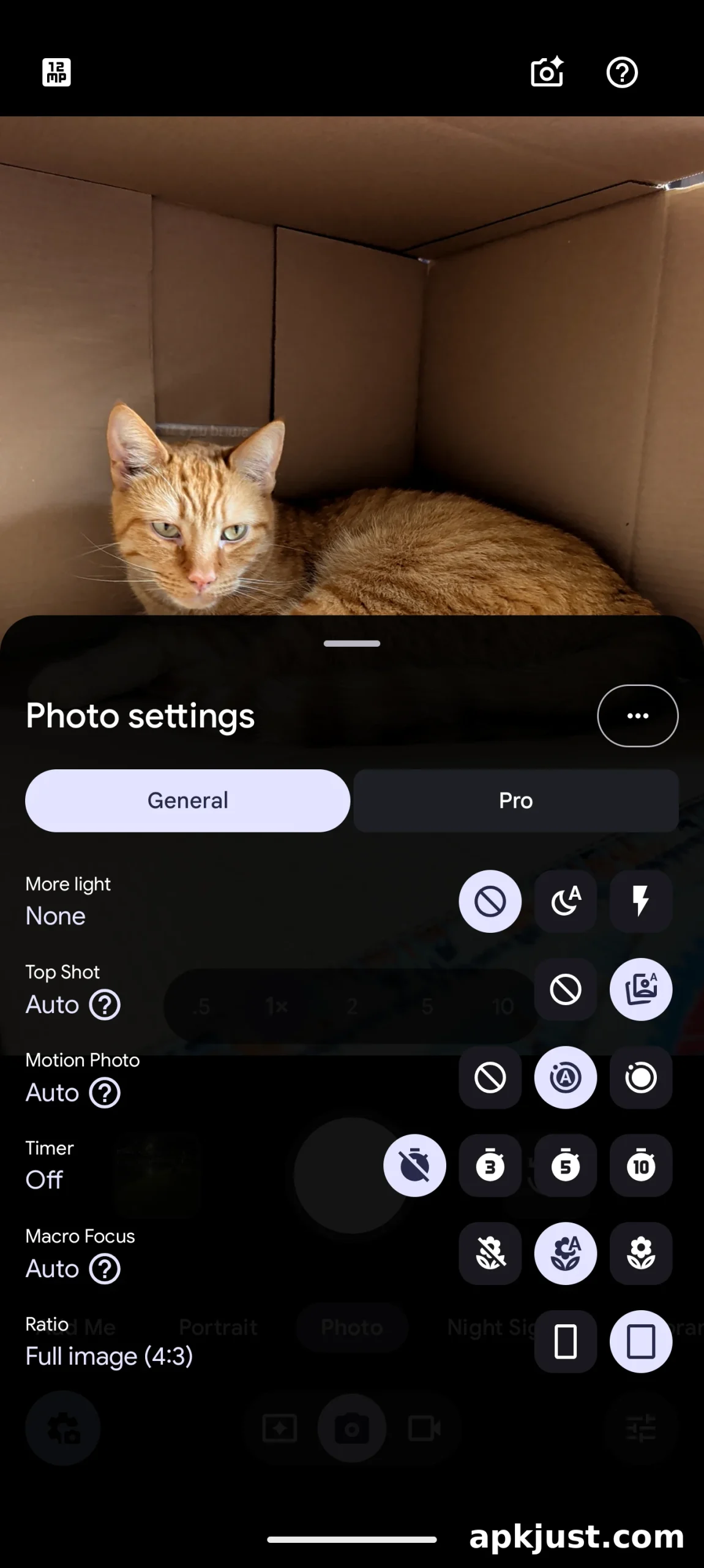
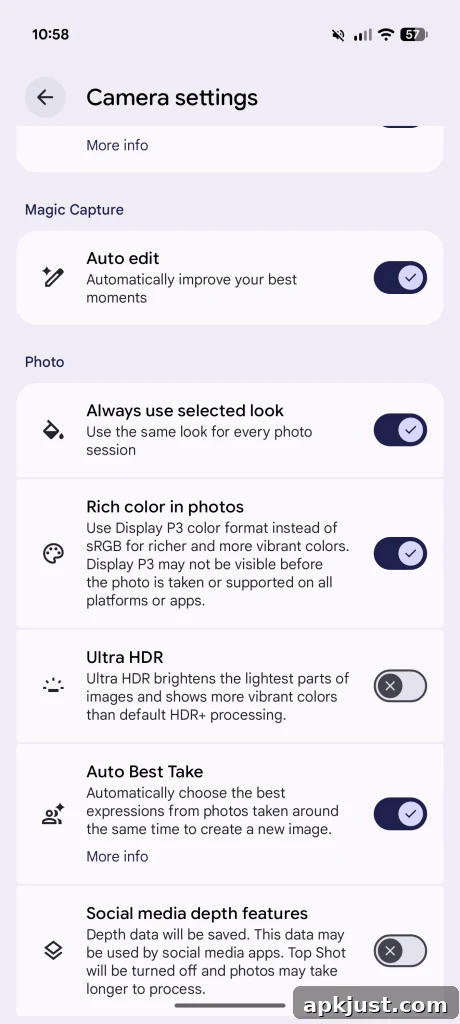
To set a Look as your default, open the Pixel 11 camera app and tap the settings icon in the lower-left corner. From there, tap the triple-dot overflow menu in the upper-right. Near the bottom of the options list, find the Photo menu and enable the toggle labeled “Always use selected look.” With that option turned on, any Look you choose from the Looks menu — including the Pixel’s more stylized presets — will be saved and applied automatically the next time you launch the camera.
When a stylized Look is saved as your preference, its name briefly appears in the lower-right corner of the camera view as the app opens, accompanied by a purple Looks icon that remains visible. That persistent icon provides quick visual confirmation of which Look is active, but it also acts as a shortcut: tapping the purple icon opens the Looks menu directly. Note that, compared with the four standard processing modes, this direct access behavior places you within the Looks selector, so you’ll need to press Back to return to manual controls such as exposure and white balance.
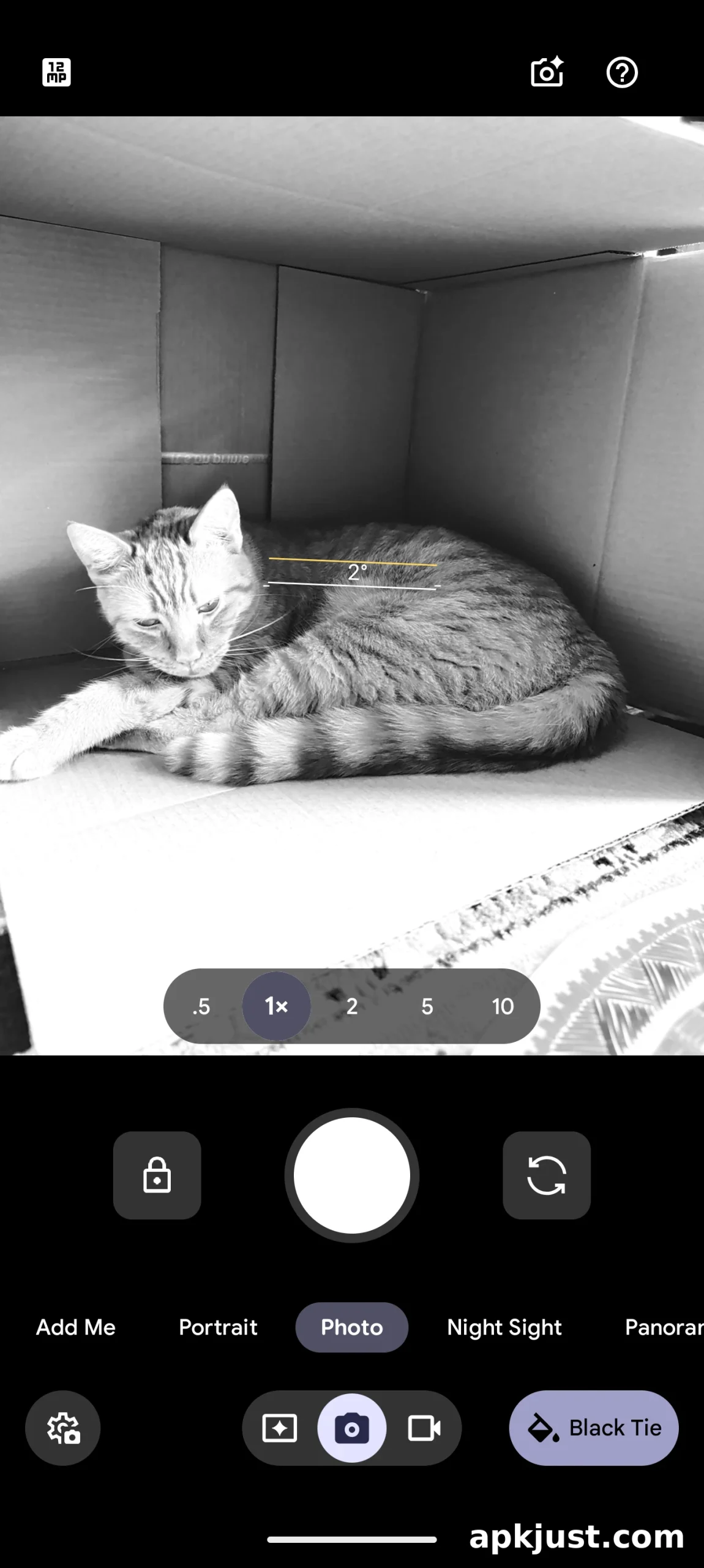
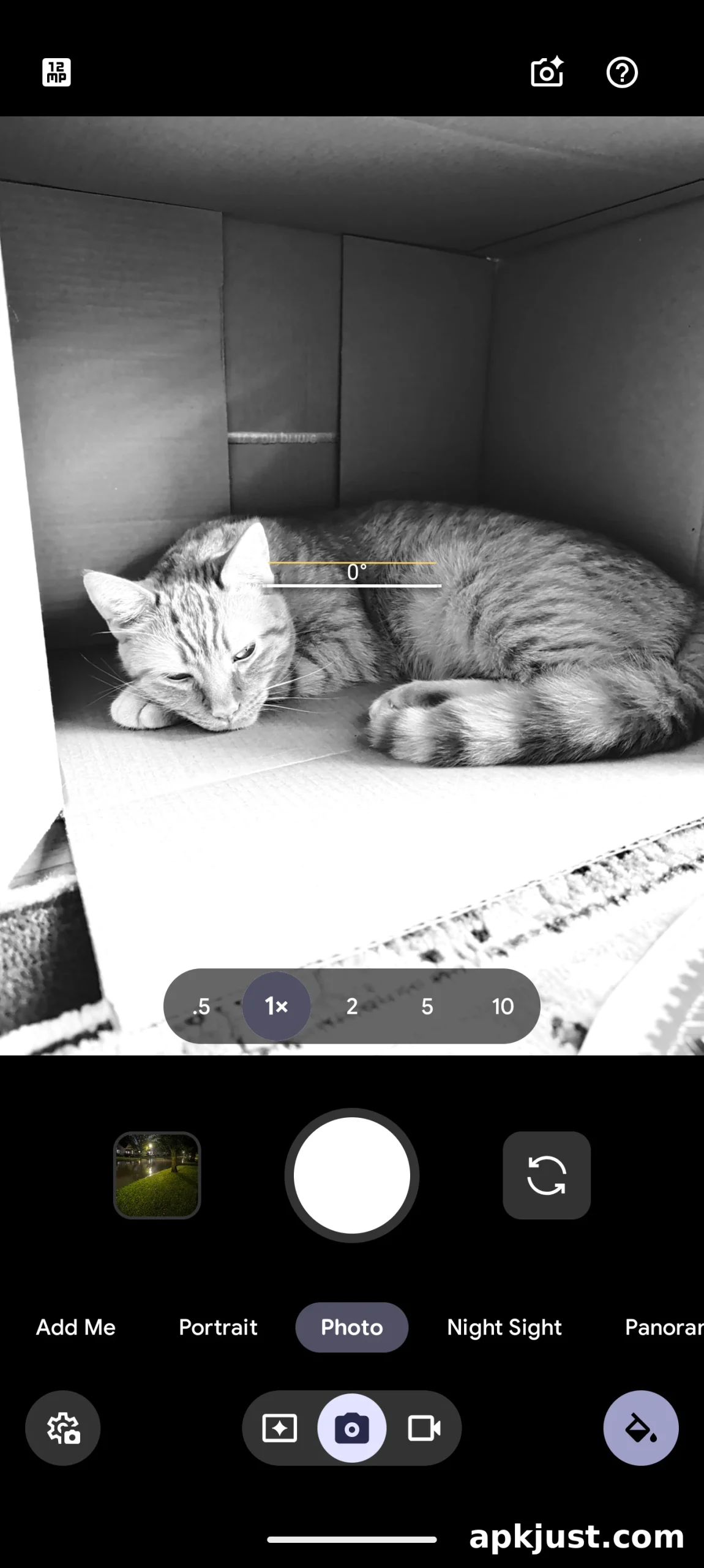
This ability to lock in any Look as the immediate starting point is a welcome addition for people who prefer a specific aesthetic without extra steps. It makes the Pixel 11’s Camera Looks far more practical for everyday shooting, whether you want a natural finish or a distinct stylized tone right out of the gate. That said, the current implementation splits default behavior into two slightly different flows — the standard defaults versus saved Looks — which can feel a bit inconsistent until you learn where to find and enable the setting.
Overall, Camera Looks represents a meaningful evolution in how Google handles image processing on the Pixel. Giving users the option to save any Look as the default improves creative freedom and speeds up the shooting process. The user experience could be tightened further in future updates to make defaults and saved Looks feel more unified and intuitive, but for now the toggle under Photo settings provides a straightforward workaround. If you own a Pixel 11 and want the camera to start in your preferred style every time, enabling “Always use selected look” is the quickest way to achieve that.