

After weeks of beta testing, Google Messages has officially introduced custom chat themes and backgrounds on Android. The new feature, available for RCS conversations, is designed to let users personalize each chat by adjusting colors and wallpapers so every conversation feels more personal and visually distinct.
The update focuses on making it easy to give each chat its own look: apply a favorite family photo behind a group chat, pick a subtle color scheme for work messages, or choose a bold wallpaper for close friends. These customizations apply on your device only, so recipients will see their conversation normally while you enjoy a tailored view.
Whether you want a favorite family photo behind your main group text or a sleek, minimal color palette for your work contact, the choice is entirely up to you.
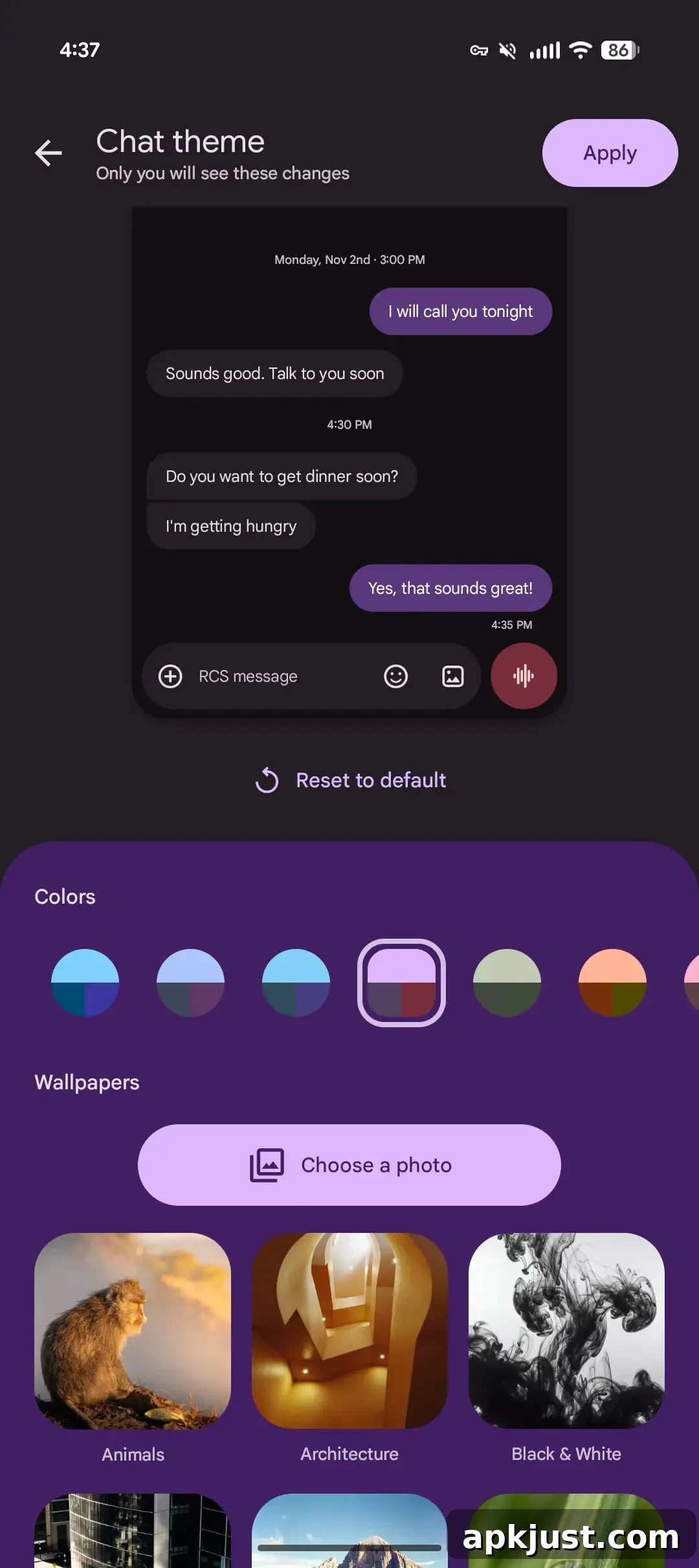
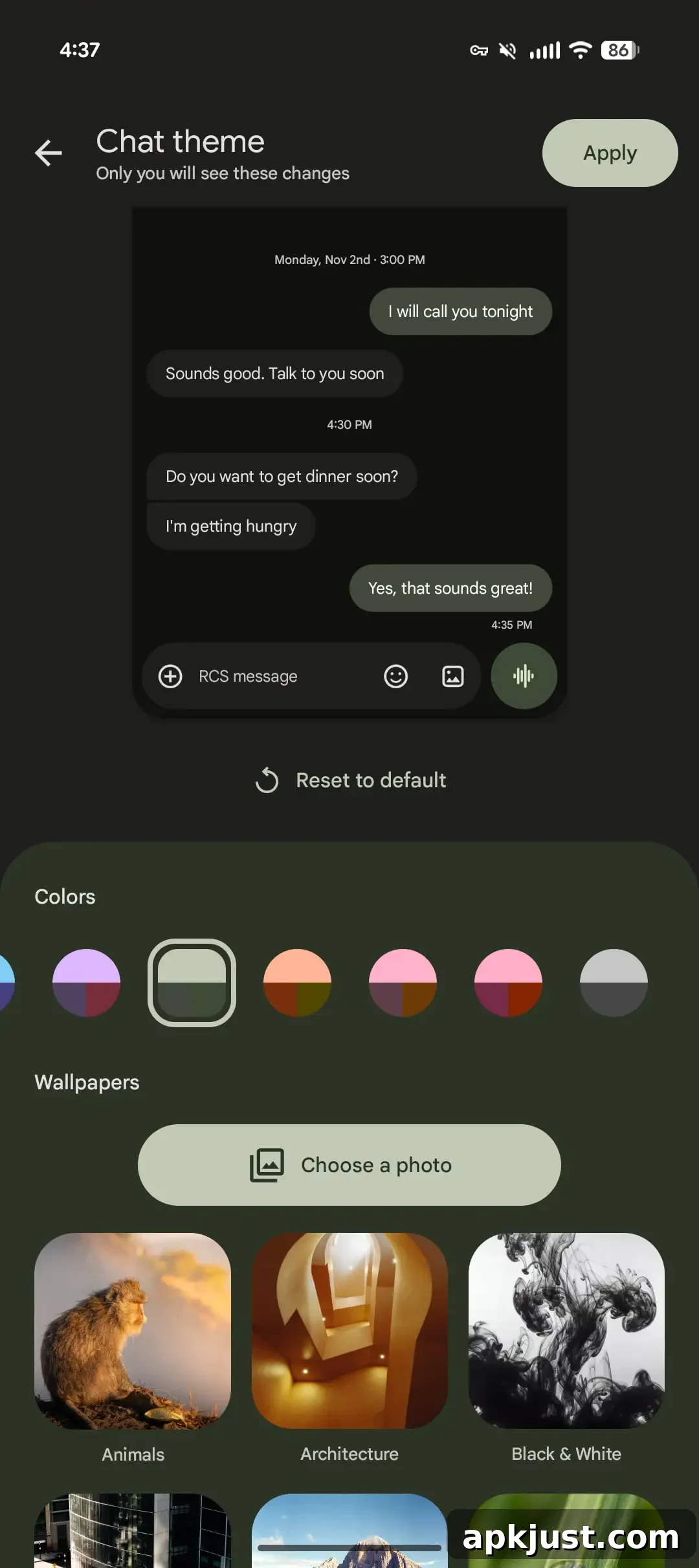
Chat themes let you change both the bubble accent color and the chat wallpaper. Google provides a curated gallery of backgrounds organized into categories such as Animals, Landscapes, and Space to help you find a style that suits each conversation. If you prefer, you can also upload your own image from your device to use as the background.
When you choose a theme, message bubbles will automatically adjust to complement the selected wallpaper and color scheme. If you want a different look, you can manually fine-tune the color palette at any time using the color carousel at the top of the chat theme picker.
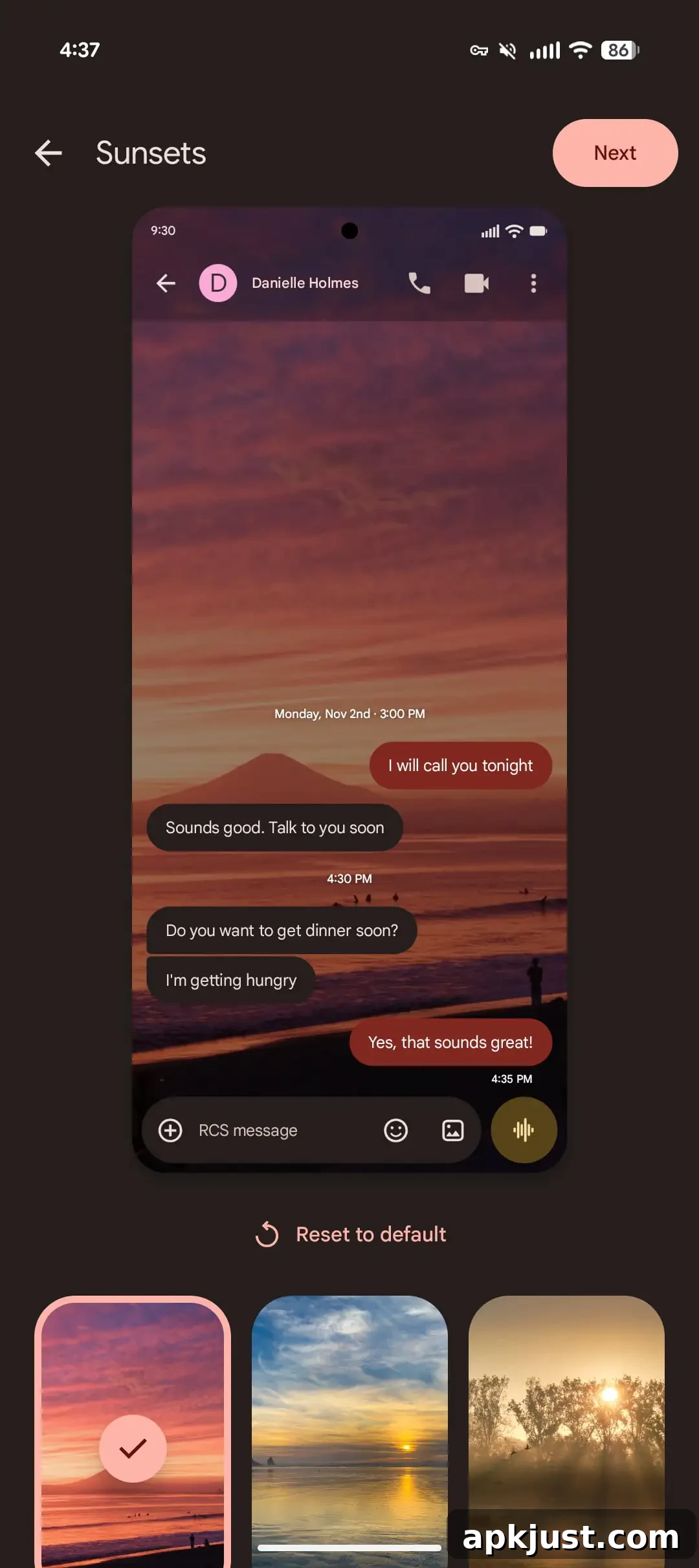
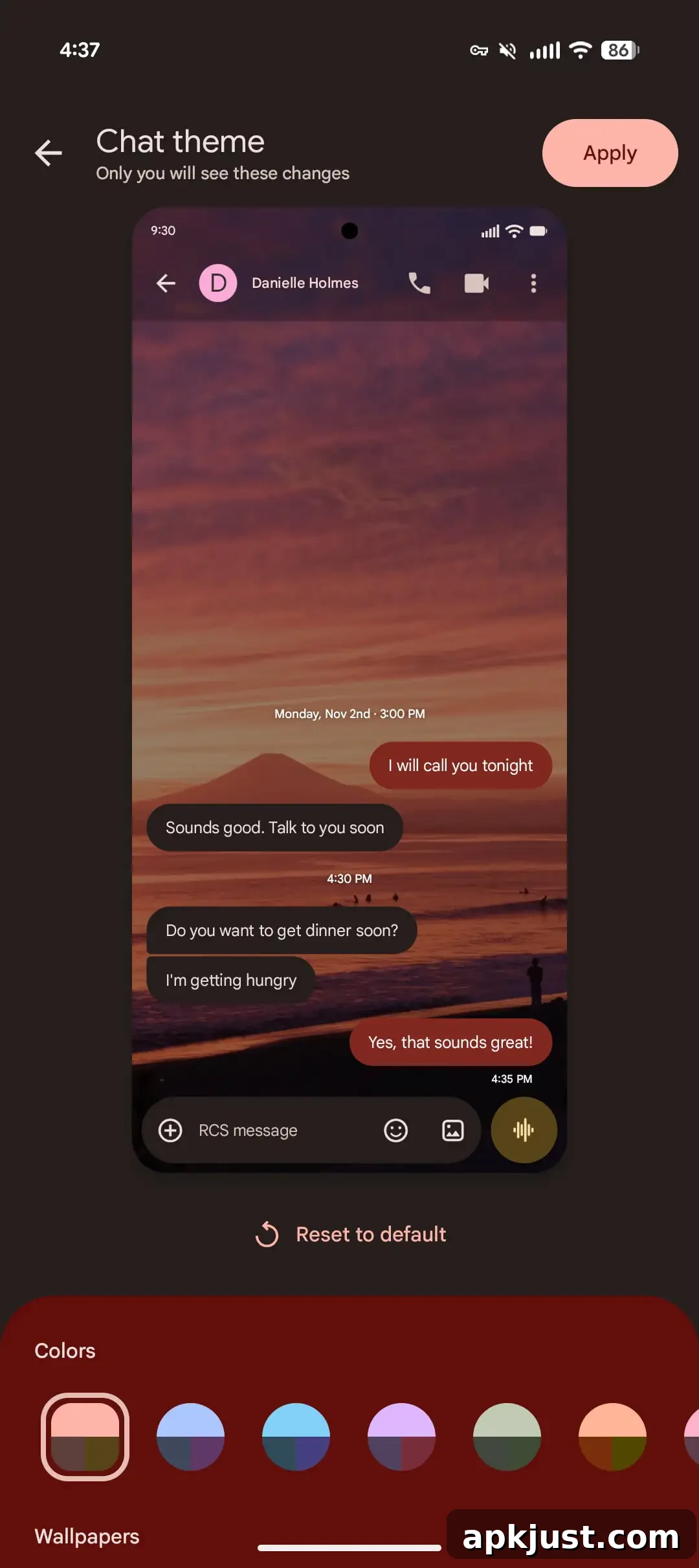
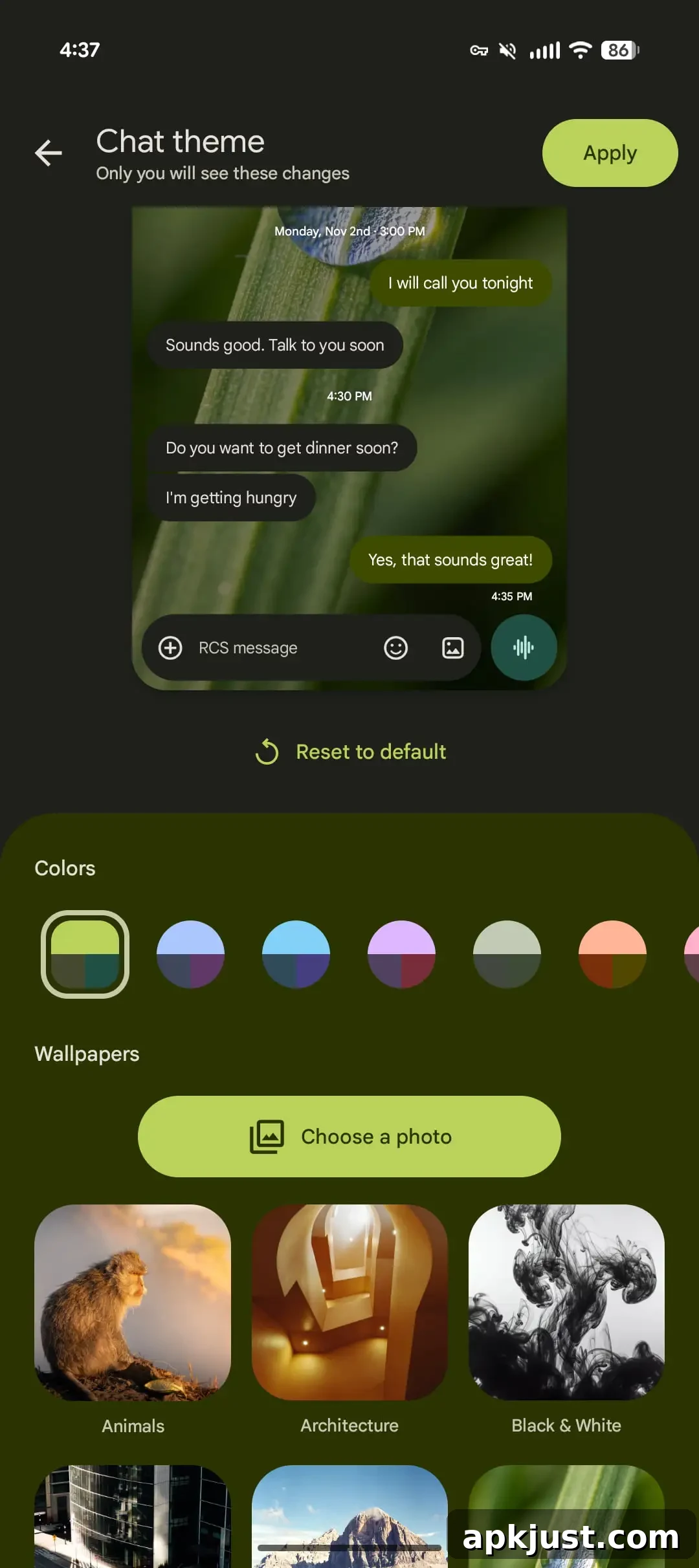
Importantly, chat themes are private to the user and only visible on the device where they are applied. That means you can freely style your side of a conversation without changing what the other person sees. The personalization is applied per chat, so you can have a different look for each contact or group.
To set a chat theme, follow these steps:
- Open Google Messages and select the conversation you want to customize.
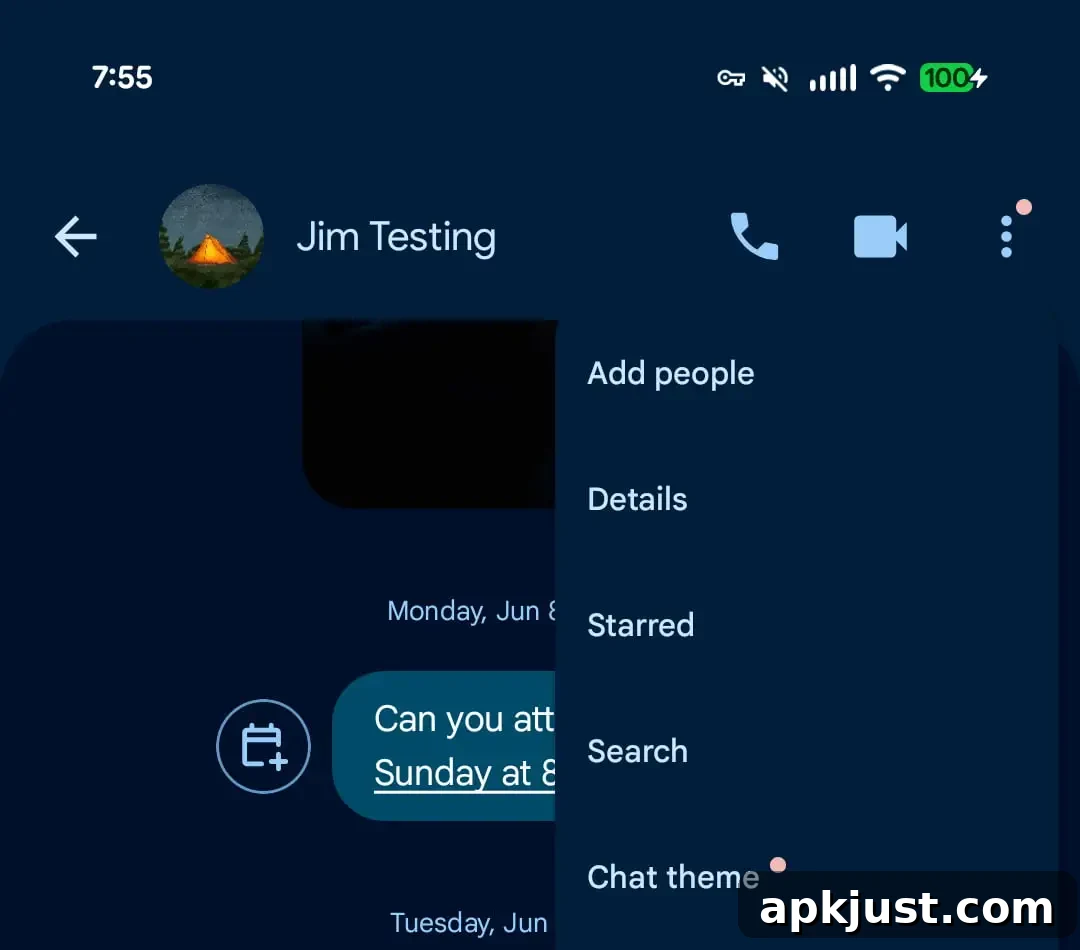
- Tap the recipient or group name at the top of the screen, or open the More menu (⋮) in the upper-right corner.
- Choose “Chat theme” from the menu.
- Pick your colors and wallpaper:
- Select a color preset from the palette to change the bubble accent and related UI accents.
- Under Wallpapers, either tap “Choose a photo” to upload an image from your gallery or browse the preset categories to pick a supplied background.
- After selecting a wallpaper, tap “Next” to preview the new look. If you like the preview, tap “Apply” to save the theme for that chat.
The chat theme menu also includes a “Reset to default” option so you can quickly revert any changes and return the conversation to its standard appearance.
At the time of writing, the feature is still rolling out and may not yet appear for all users in the beta or stable channels. When available in your app, expect to see an indicator in the three-dot menu or within the conversation settings to access the new Chat theme options.
With these chat themes, Google Messages adds a simple and effective way to personalize messaging beyond just wallpapers or system-wide settings. By combining curated backgrounds, the ability to upload your own images, and an adjustable color palette, the tool gives users flexible control over the look and feel of each conversation while keeping those changes private to their device.