
Gemini Skills Arrive in Chrome for Desktop
Gemini in Chrome on desktop is receiving a new Skills feature designed to speed up common tasks and demonstrate what Gemini can do when it has access to a webpage. Skills let you run prebuilt prompts across the page you’re viewing and any additional tabs you select, making routine workflows faster and more consistent.
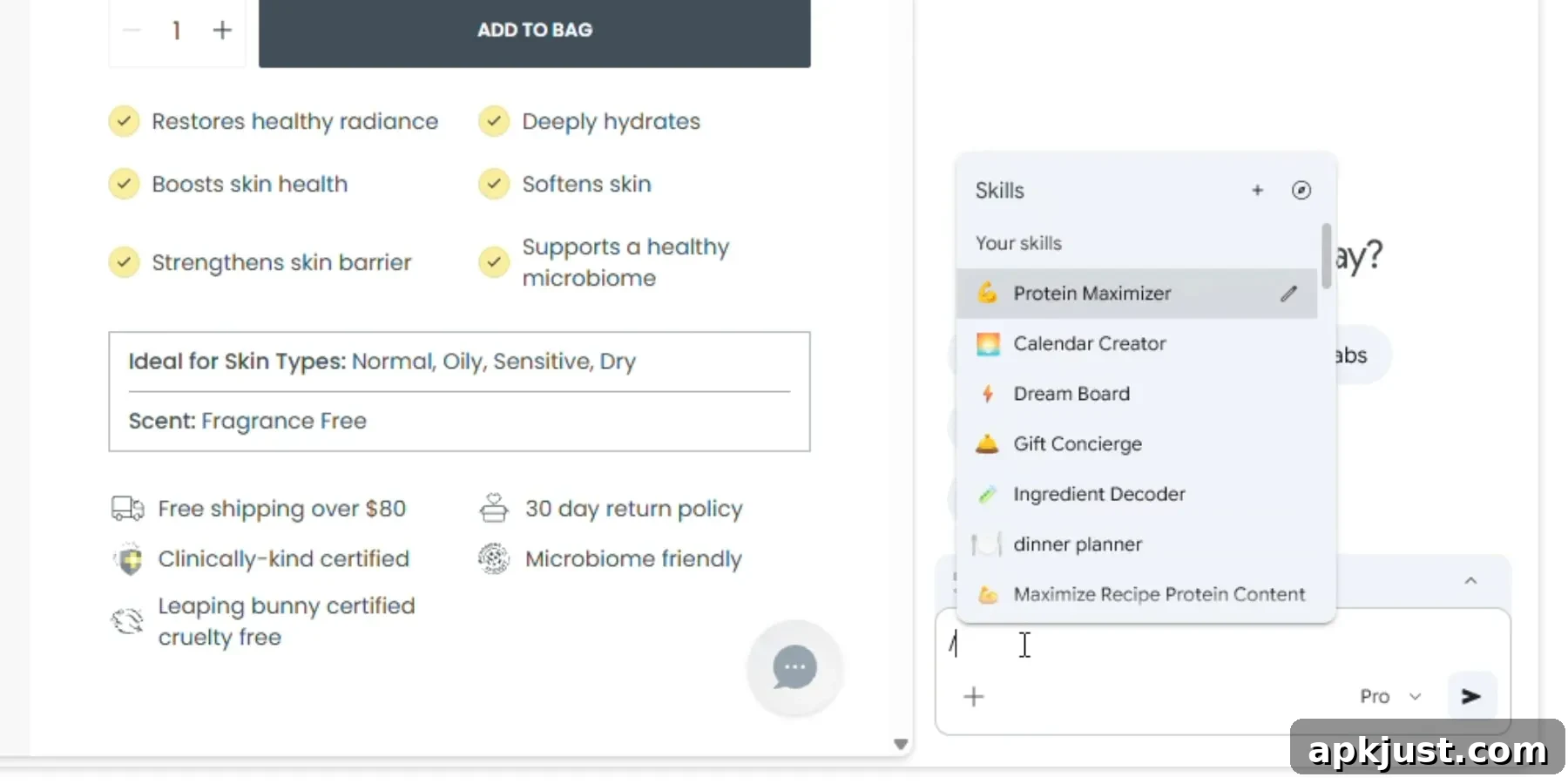
Skills are one-click workflows you trigger by typing a forward slash (/) in the Gemini prompt box. After typing “/”, a list of available Skills appears, and you can select one to run on the current tab or include other open tabs by using the interface to add them. This macro-like approach saves you from digging through past chats to copy and paste prompts into new conversations.
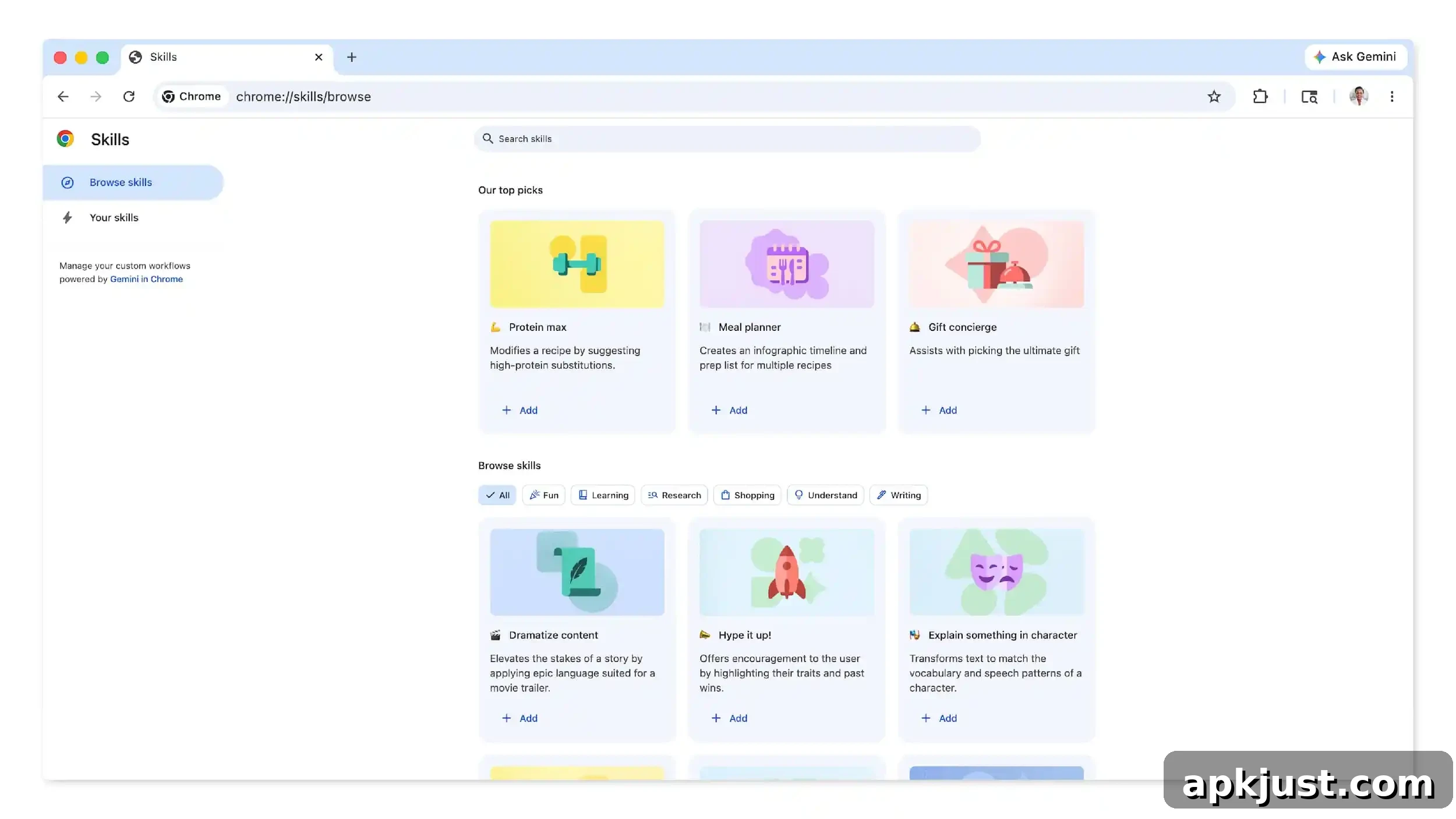
Google recommends saving prompts you know you’ll reuse. Gemini will also suggest saving a Skill at the end of a chat when it detects a repeating pattern or useful workflow. When you save a Skill you choose its name and can assign an emoji to make it easy to identify in the list.
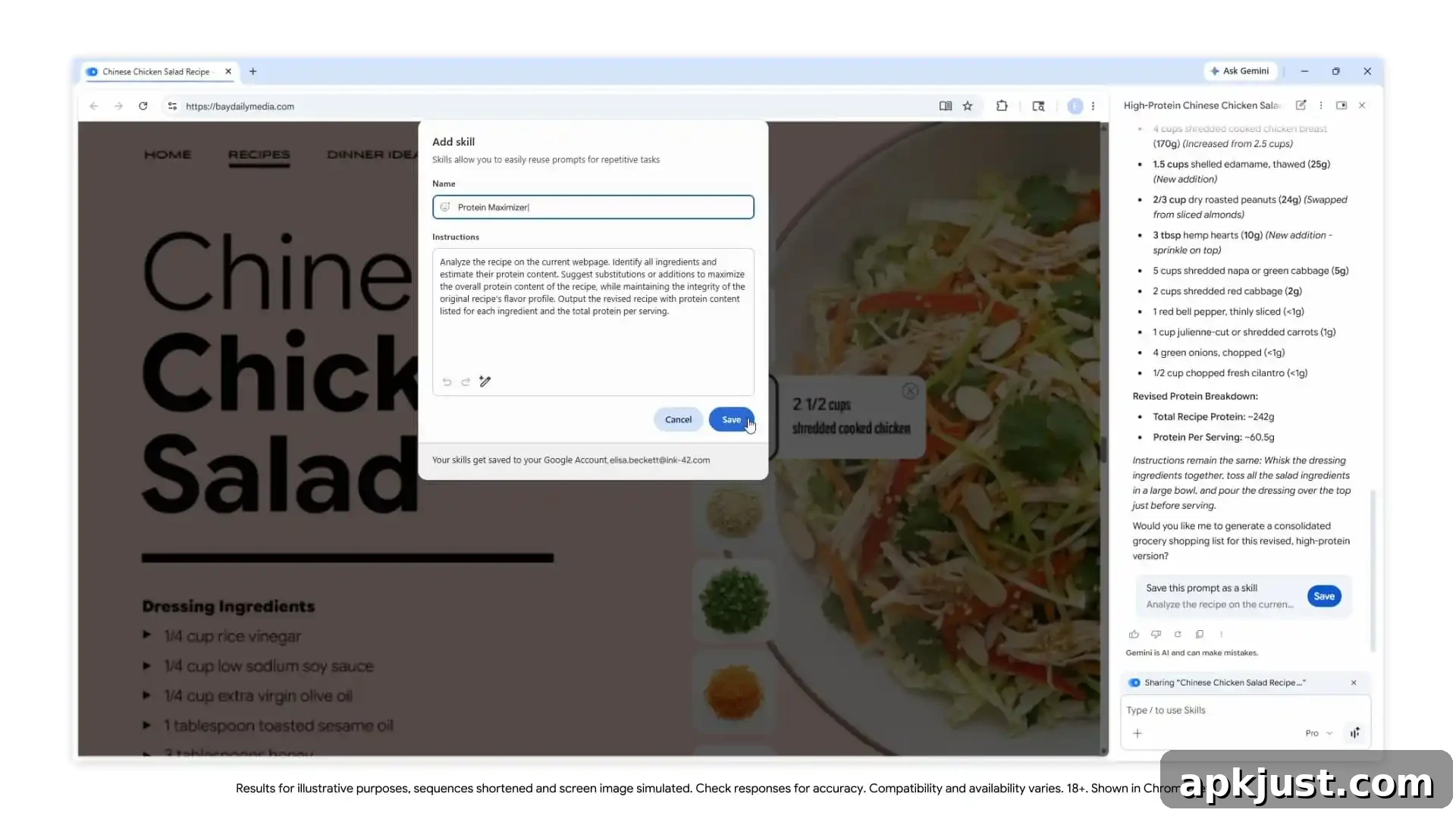
Google is also providing a Skills library at chrome://skills/browse, which groups recommended workflows for common tasks in categories such as Learning, Research, Shopping, Writing, and Productivity. From the library you can save Skills directly to your account and edit them to fit how you work.
Example use cases include:
- Health & Wellness: Quickly calculate protein or other macronutrient totals for any recipe you have open in a tab.
- Shopping: Generate side-by-side comparisons of product specs by pulling details from multiple product pages across tabs.
- Productivity: Scan a long document or a set of tabs to extract key points, summarize findings, or create action items.
Want to break down the ingredients of a product you’re viewing online? Or select the perfect gift by cross-referencing budget and recipient interests across multiple tabs?
Skills are not limited to text-only outputs. Another useful scenario is converting information into visual formats: you can have a Skill transform data or comparison results into simple infographics or charts to make content easier to digest. This is helpful for presentations, reports, or quick visual summaries.
On the safety front, Skills prompt you to confirm before they perform sensitive actions like adding events to your calendar, sending emails, or making purchases. This confirmation step helps prevent accidental actions and gives you control over what a Skill is allowed to do.
The rollout for Skills in Gemini on Chrome desktop begins today. Once saved, your Skills sync across any Chrome desktop device where you’re signed in, so you can manage and run them wherever you use Gemini in Chrome. To manage saved Skills, type “/” in Gemini and click the compass or library icon to view and edit your collection.
Your saved Skills are available on any signed-in Chrome desktop device and can be managed by typing a forward slash (/) in Gemini and then opening the Skills browser or management panel.