
Google is now giving users the long-requested option to change their Gmail address without deleting their account or creating a new one. The new feature makes it straightforward to update an email username when you want a more professional, modern, or simply different address.
There are many reasons someone might want a different Gmail address. Perhaps an old username no longer fits your professional image, you want to align the address with a new personal brand, or you simply prefer a cleaner, simpler handle. Previously, changing an @gmail.com address required deleting the account or making a brand-new account, which forced users to move data and reconfigure services. That is no longer the only option.
Historically, users who tied their Google Account to a third-party email could change the account address without issue, but native @gmail.com addresses were effectively permanent. Google began a phased rollout of the new change-a-username feature late last year and has continued to expand availability. The help documentation for the feature first appeared in a limited set of languages and regions and has since become more widely accessible.
As of March 31, 2026, the process is officially available in many regions, including the US. Availability continues to expand, and Google notes the option is gradually rolling out to all users worldwide. If the option isn’t visible in your account today, it may appear soon.
When you change your Gmail username, Google preserves your original address as an alias. Both the old and the new addresses will continue to receive email in the same account, so people who email your former address will still reach you. This aliasing approach helps avoid lost messages and makes the transition smoother for contacts who haven’t updated their records.
Important limits: Google allows this change only once every 12 months and up to three total changes over the lifetime of an account. Plan your new username carefully to avoid frequent changes.
How to change your @gmail.com address
The steps to update your Gmail username are simple and the same whether you use a desktop browser or a mobile device. The feature is being rolled out regionally, but where it is available the path is consistent. Follow these steps to change your Google Account email:
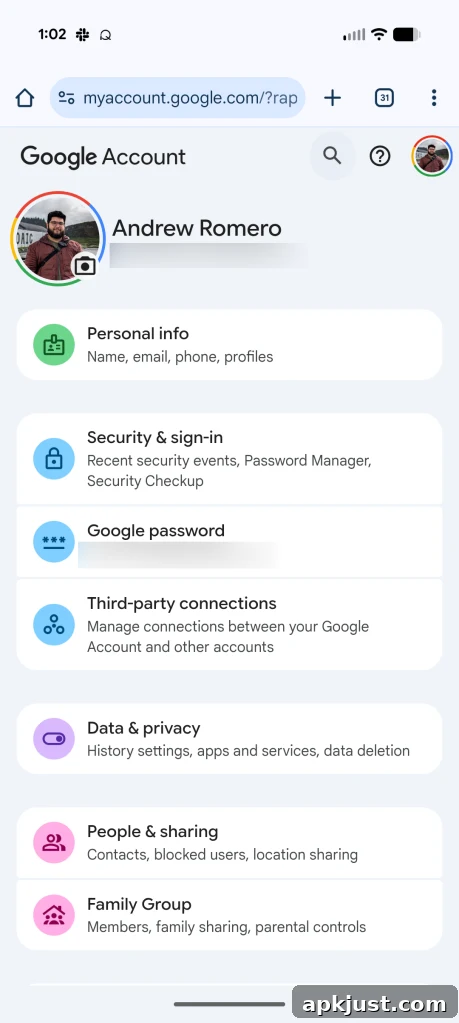
- Go to your Google Account settings and open the section for account email (myaccount.google.com/google-account-email).
- Choose Personal info from the account menu.
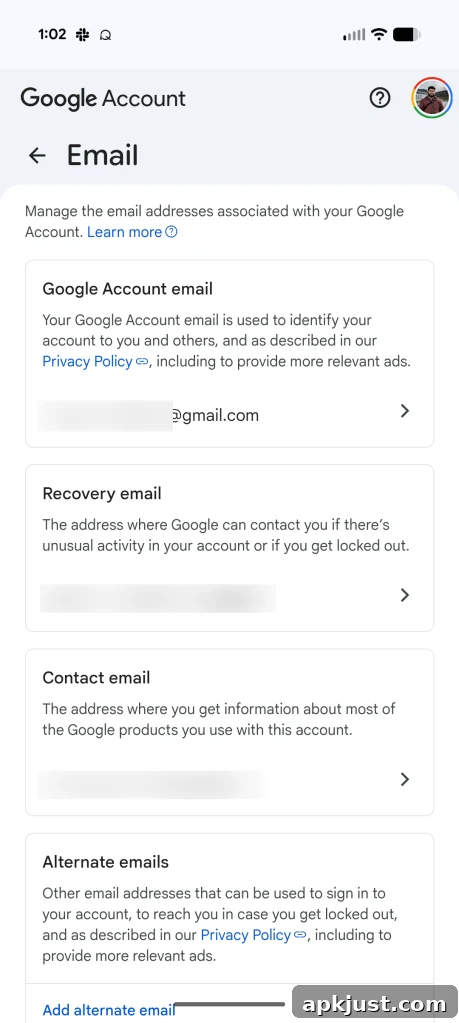
- Locate and open the Email card.
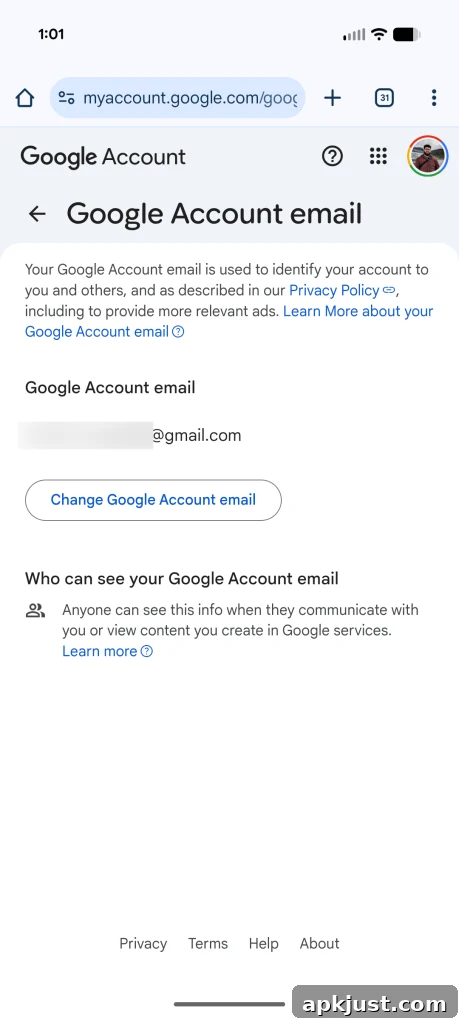
- Under Google Account email, select the option to change your Google Account email address.
- Enter the new username you want to use.
- Confirm the change by selecting Change email address and following the on-screen confirmation steps.
- Complete any remaining prompts to finish the process.
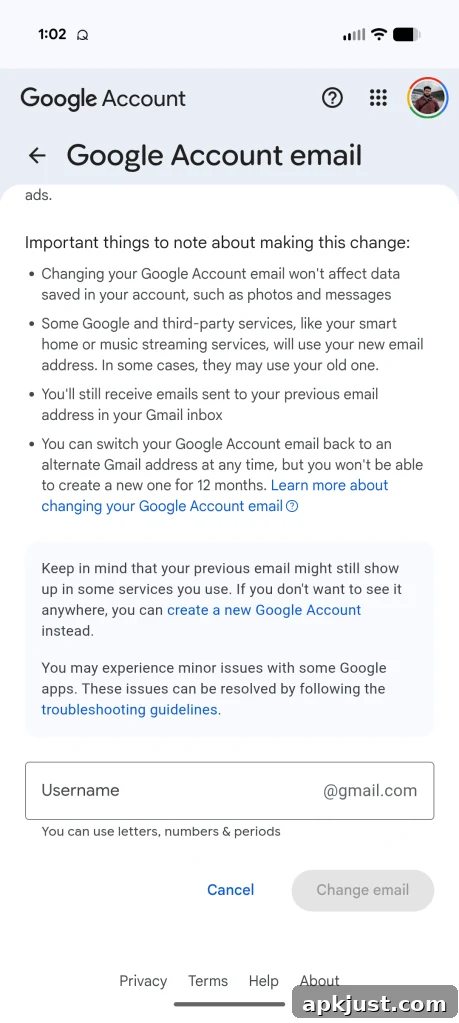
After changing your username, some Google app settings may be reset. For example, Gmail background choices, chat tabs, or certain app preferences could revert to default. These changes are expected and can usually be adjusted again after the username update. Some users report being signed out of Google apps or having home screen widgets reset; while inconvenient, these issues typically resolve once you sign back in and reapply preferences.
Because the old address remains an alias, incoming messages to that address still appear in your inbox. This preserves continuity while giving you a fresh username for outgoing messages and account identity. Keep in mind that the alias behavior means you won’t lose messages, but some external services that use your email address for logins or notifications may need you to update your email there manually.
Google continues to roll out the function gradually. If you don’t yet see the option in your account settings, check back periodically. When available, the process offers a convenient way to modernize your email identity without the hassle of migrating to a new account.
More on Gmail:
- Gmail is introducing advanced inbox features and AI-driven tools for some subscription tiers.
- Recent updates have expanded label management and improved organizational controls in Gmail for Android.
- Gmail on iPhone has received updates to its photo attachment picker to streamline adding images from your library.