
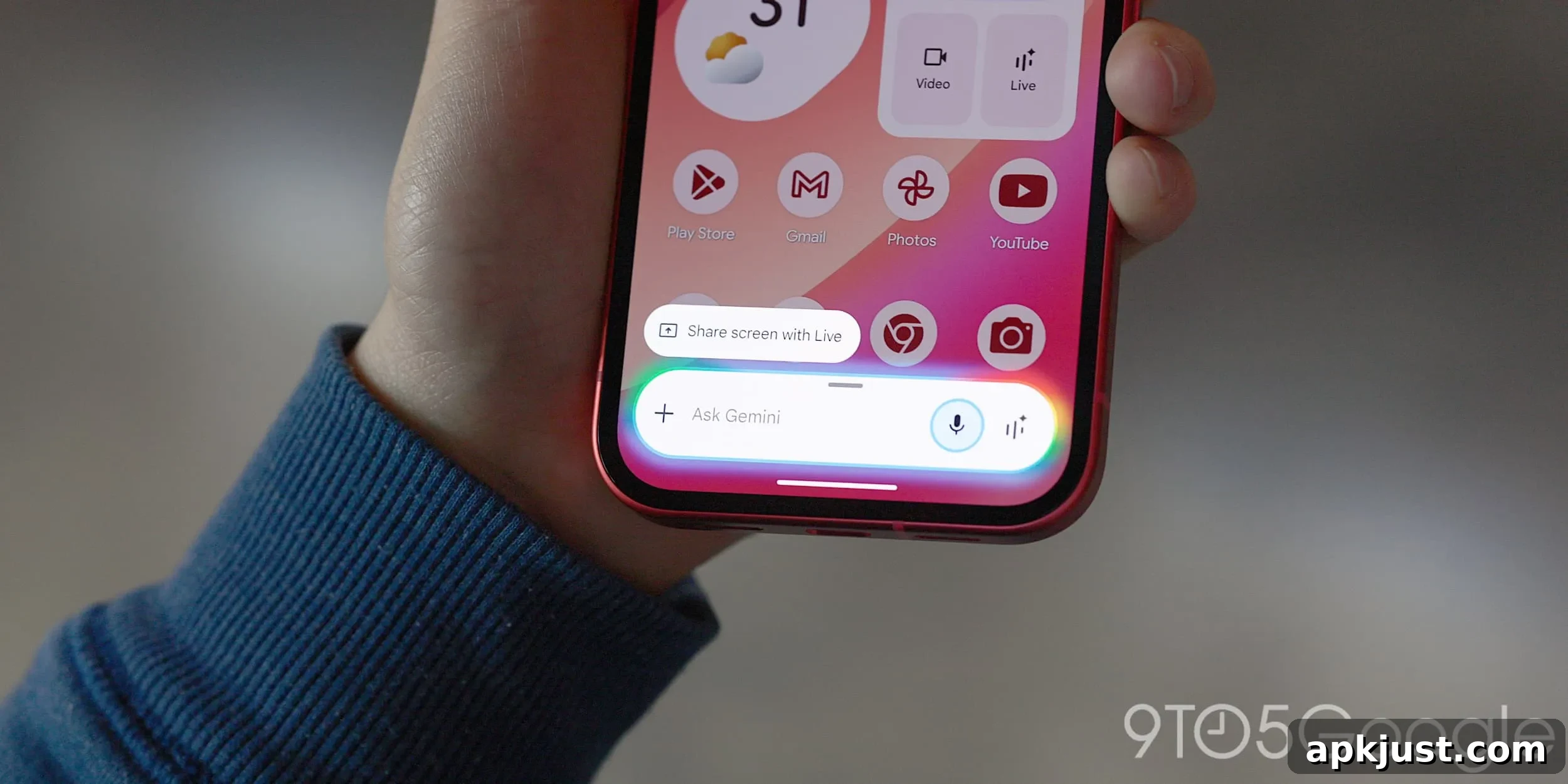
The latest Gemini overlay redesign brings easier access to more of the prompt box and the Gemini Tools menu across Android devices. The update reorganizes the on-screen controls so you can reach common AI features from the floating overlay without opening the full app interface.
Update 3/12: Google has begun a wide rollout of this redesigned Gemini overlay. The new experience is appearing for users on stable Google app builds around version 17.8. If the redesign is not visible on your device yet, forcing the Google app to stop from system App info can help trigger the change for some users.
Original 2/26: The redesign integrates the Gemini Tools menu into the pill-shaped overlay, placing it just to the right of the existing attachment “plus” icon. The attachment control itself remains unchanged. To accommodate the added Tools menu, the “Ask Gemini” hint text has been centered in the overlay.
Old vs. new
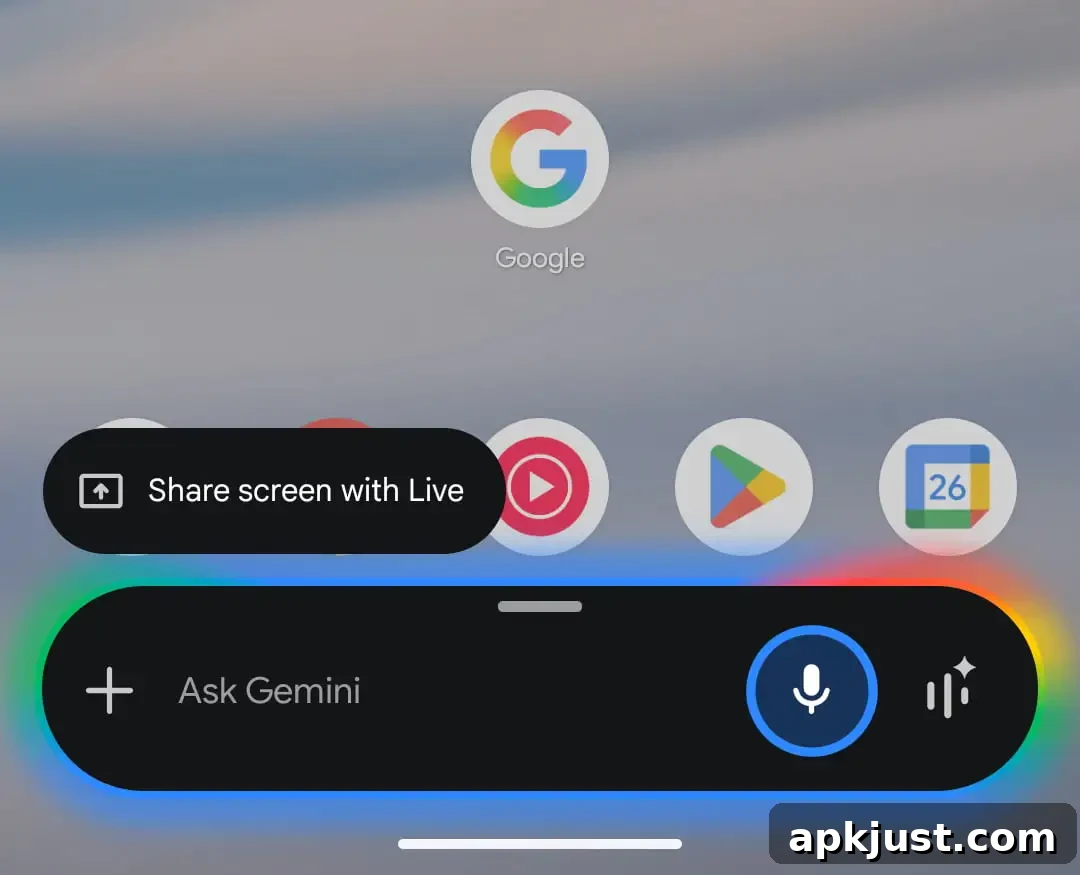
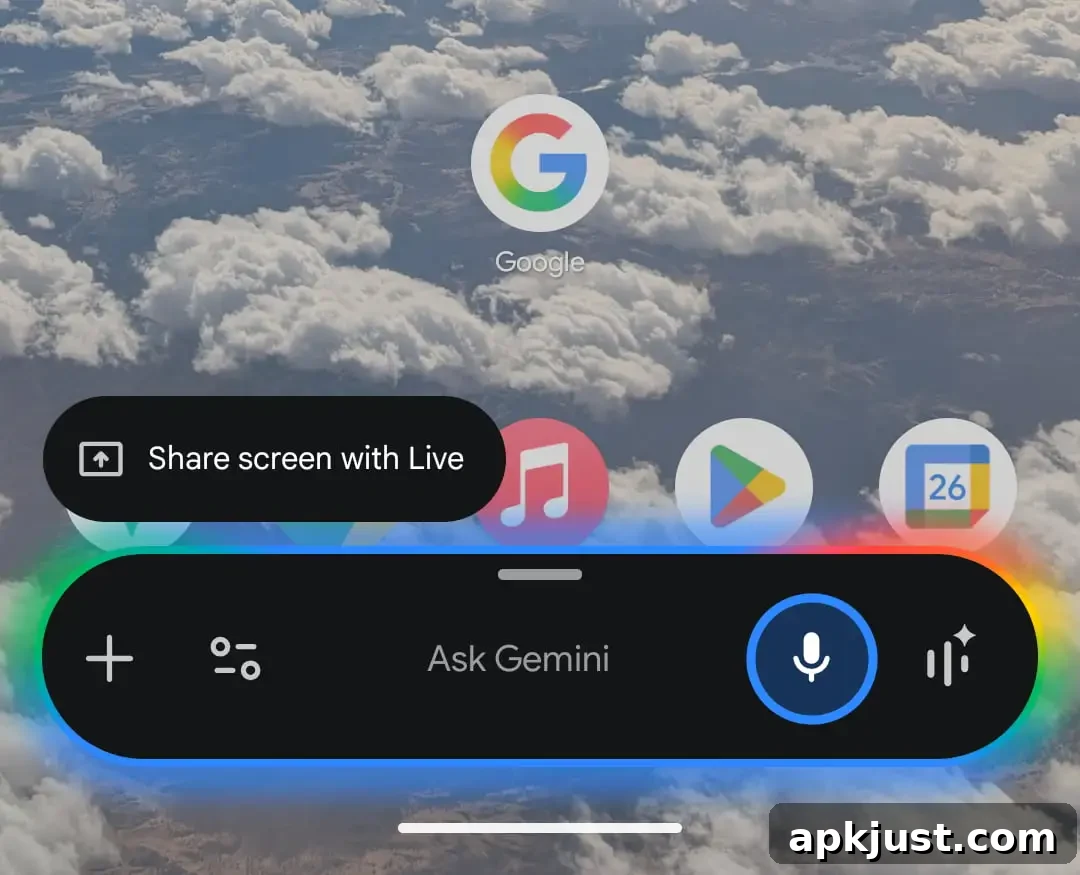
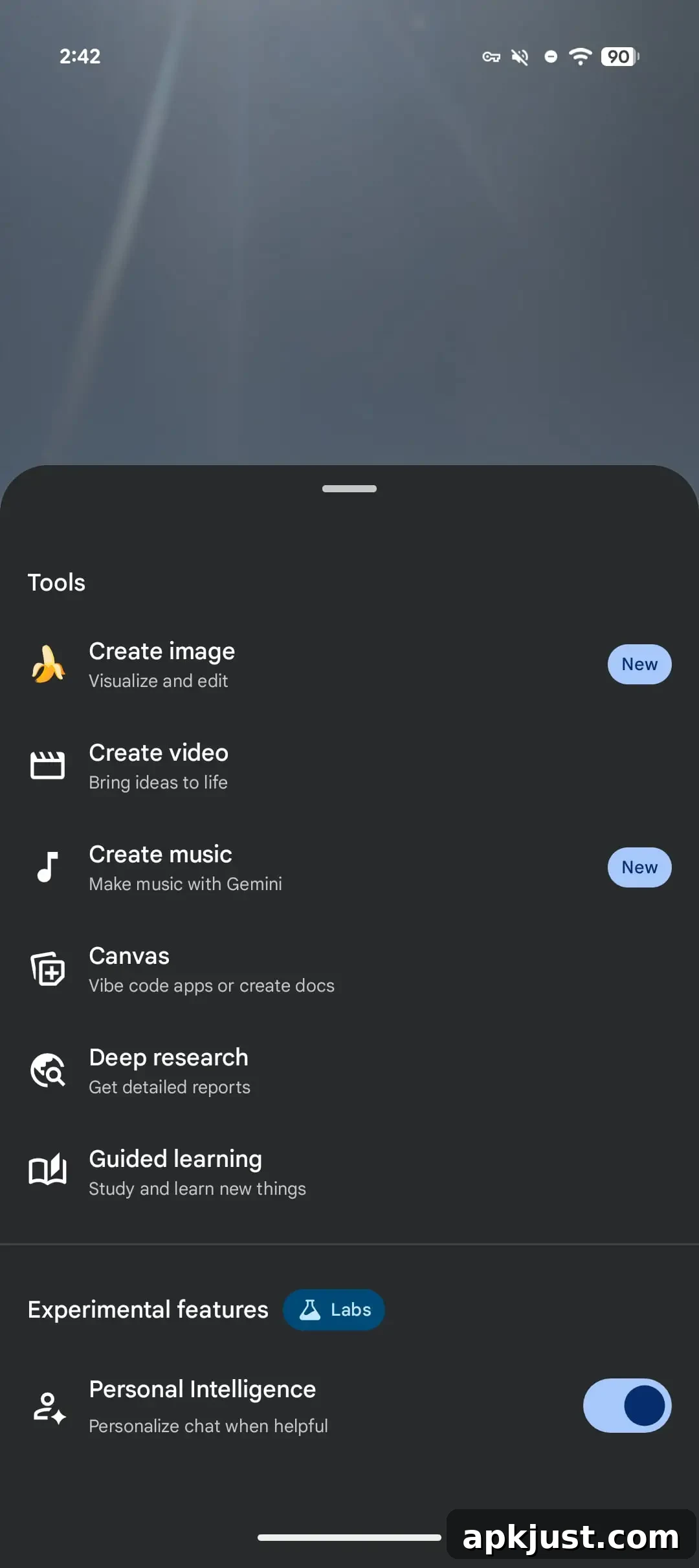
Tapping the new Tools button opens a compact menu of creation and research features. From this menu you can generate images, videos, and music, as well as access Canvas, Deep Research, and Guided Learning directly from the overlay. Google AI subscribers will also see a Personal Intelligence toggle in the menu. The layout and labels closely match what users already see in the dedicated Gemini app, but the overlay adds short descriptions for each tool to make them easier to understand at a glance.
- Create image: Visualize ideas and edit images.
- Create video: Produce short videos to bring concepts to life.
- Create music: Compose music with the help of Gemini’s generative tools.
- Canvas: Use Canvas for quick, visual note-taking, app-like vibes, or to draft documents.
- Deep research: Request in-depth reports and summaries for complex topics.
- Guided learning: Access structured learning paths and study resources.
When you begin typing, the overlay expands from a pill shape into a two-line, rounded rectangle to provide more room for input and tool controls. The only element not present in this overlay version is a direct model switcher control; it appears the focus of this redesign is on exposing tools and prompt space while keeping the interface compact.
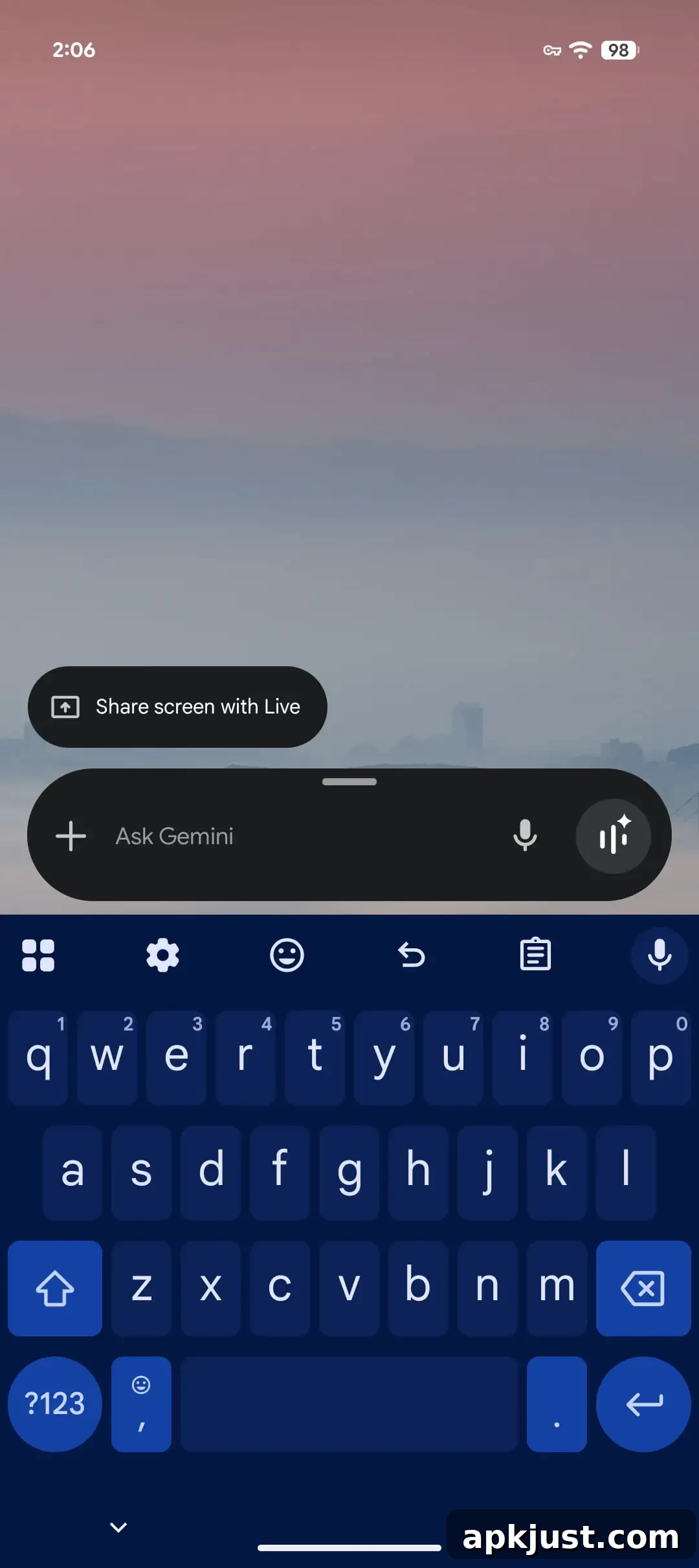
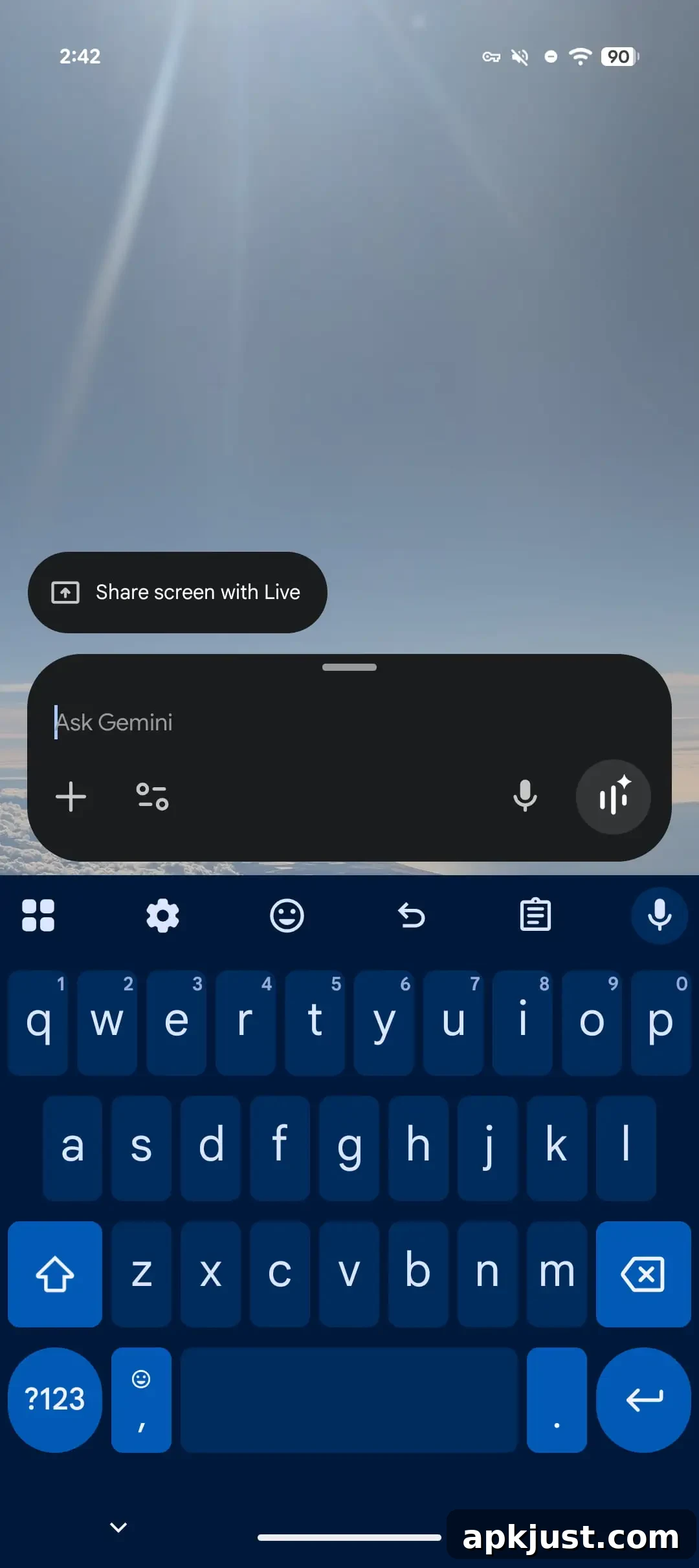
We first noticed this redesign in the latest Google app beta, version 17.7. The change is rolling out gradually and is not yet available to all Google Accounts. As with many staged feature releases, availability may vary by device, region, and account settings while Google completes the deployment.
Separately, Google is also experimenting with a new floating pill interface for Gemini Live, a variation of the overlay that was observed earlier this month. That test appears to be part of an ongoing effort to refine how users interact with Gemini features without needing to open the full application.
More on the Gemini app:
- Gemini app is rolling out a “Past Chats” personalization feature to free users, enabling tailored conversation history and context.
- The Nano Banana 2 update brings Pro-level quality with faster performance and is gradually being integrated into the Gemini app.
- Google has released a Gemini Enterprise mobile app and added integrations such as @Google Chat for Workspace, targeting business users and organizations.
Overall, this overlay redesign aims to make Gemini’s capabilities more accessible during everyday tasks on Android. By surfacing a concise Tools menu and expanding the prompt area when needed, Google is reducing friction for creating content, conducting research, and starting guided lessons directly from a floating interface.